

Configuring Claude
Getting Started with Knapsack MCP + Claude Desktop
Before we can begin configuration you’ll need to install and setup Claude Desktop. Download the latest version of Claude Desktop from Anthropic:
If your organization maintains an allowlist or registry of approved MCP servers, be sure to add your Knapsack MCP site’s workspace ID to this URL: https://mcp.knapsack.cloud/mcp/<workspace-id>
To find your workspace ID, find the URL of your Knapsack site and look for what comes between site / and / latest.
Below is an example of how we at Knapsack would find our workspace ID:
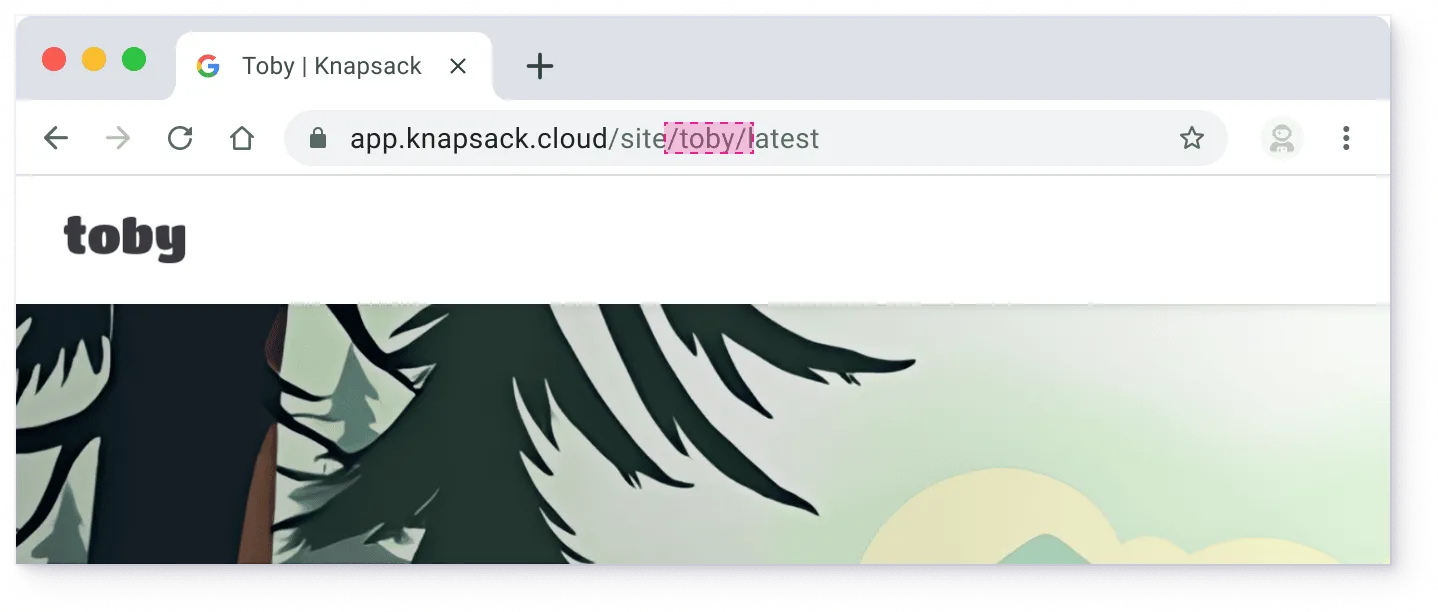
Our MCP URL would be https://mcp.knapsack.cloud/mcp/toby
Prerequisites
- Knapsack MCP requires a local
Node.js v20or later to run successfully. - Note: There are many third-party and system-level methods and tools for managing node versions.
- You can check and manage your Node version using nvm (Node Version Manager), as shown in the example below.
Setup Instructions
After installing Claude Desktop in the Getting Started section, we can move onto our configuration.
Step 2) Add your Knapsack MCP Configuration
Add (or merge) the following block into your config file, adjusting for your Knapsack workspace:
Replace:
knapsack-mcp-tobywith your workspace identifier:knapsack-mcp-<workspace-id>https://mcp.knapsack.cloud/mcp/tobywith your workspace endpoint:https://mcp.knapsack.cloud/mcp/<workspace-id>
Step 3) Restart and use Knapsack MCP with Claude Desktop
🎉 Restart Claude Desktop. Claude will automatically detect and connect to your new MCP configuration.
🔐 Authenticate. You will be directed to an authentication screen within your browser.
🚀 Do great things. Bootstrapped by Claude powered by Knapsack MCP.
Troubleshooting
If something isn’t working, try these steps:
- Check the logs: Errors usually reference the log file location. Review the logs for details.
- Early Access not enabled: Ensure your workspace has MCP access enabled; otherwise, the connection will fail.
- Old Node version:
MCP requires Node 20. Use
nvmto uninstall older versions and set Node 20 as both your current and default.