
Adding Search Terms
Managing search terms
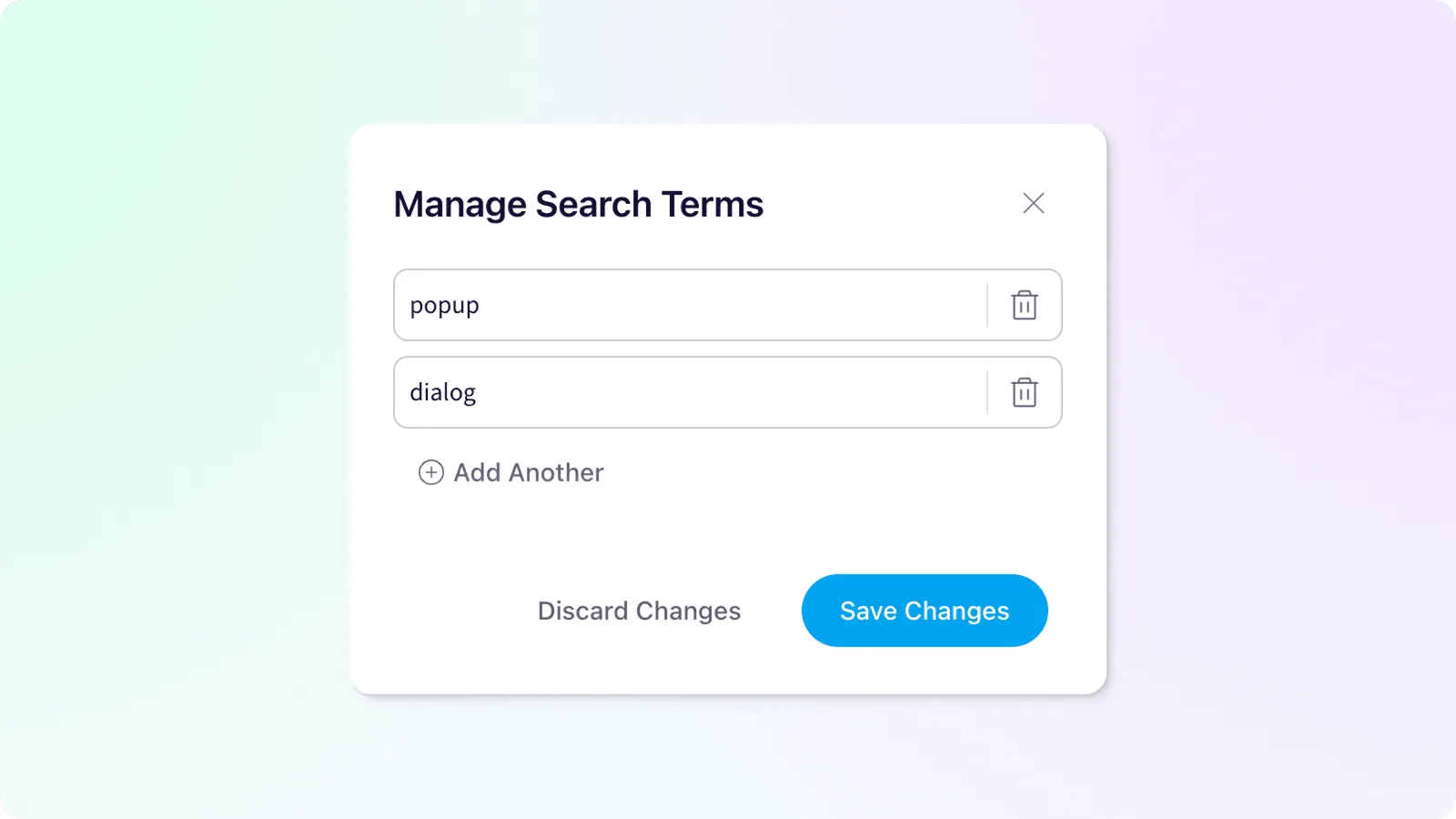
There are no limits on the number of terms you can add to help your users find content in your workspace. Within the search terms modal you can add new terms, update or remove existing terms. As an example, a component named Modal with search terms of popup and dialog would appear in a search result for modal, popup, and dialog.
Adding Terms
- Click the Add Another button to insert a new option
- Add the desired text for the term
- Add additional terms if desired
- Click Save Changes to update the pages search terms
Editing Terms
- Adjust the text of an existing item and click Save Changes
Deleting Terms
To the right of an existing term you’ll see a delete icon button. Click the button to remove the item, then click Save Changes to update the pages terms
Accessing a page’s search terms
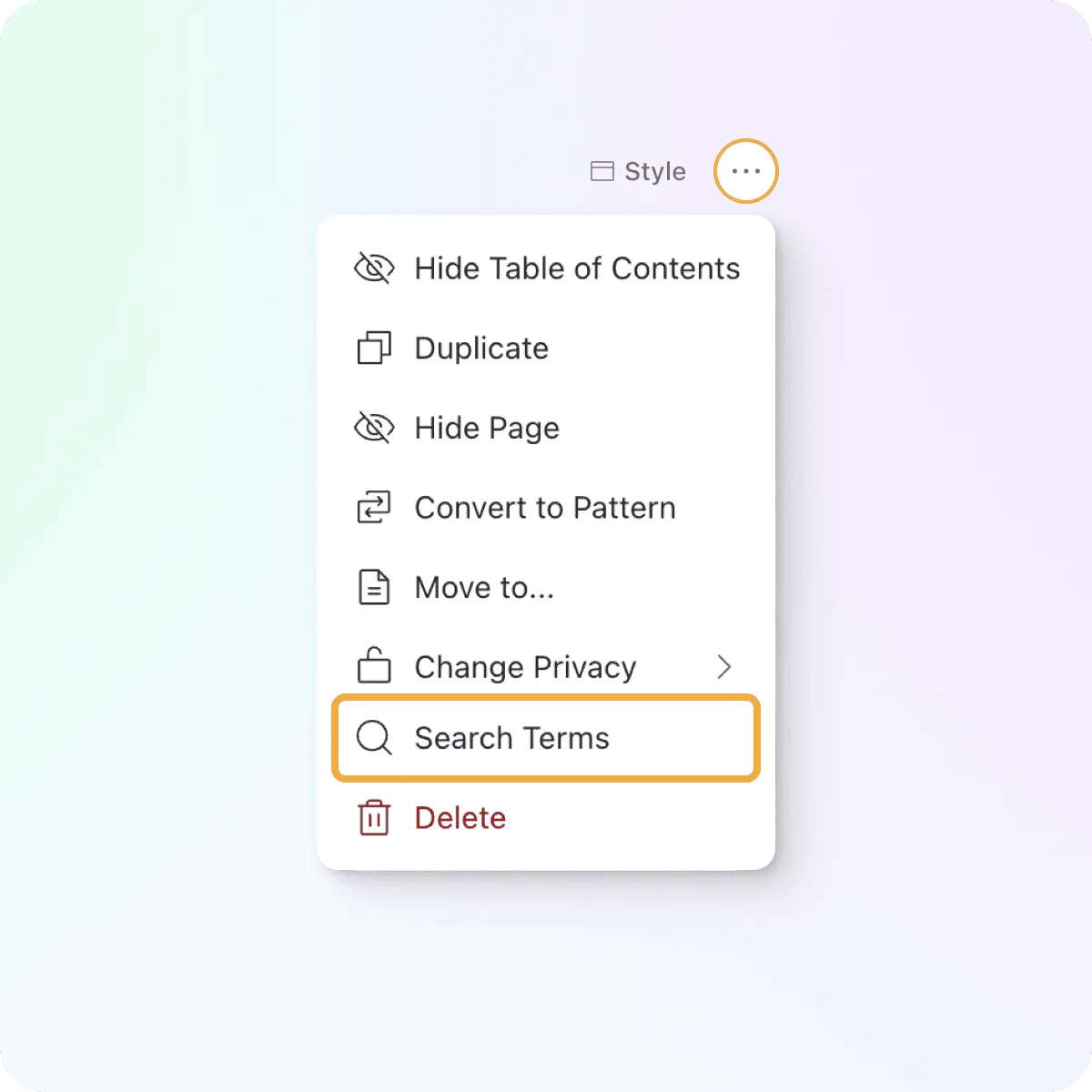
In the top right of the page, you’ll find a page menu trigger indicated by three dots. Click the trigger to open the page actions menu and find the Search Terms option.
The search terms form can also be accessed from a navigation item as well. Find the actions menu, indicated by three dots, by hovering over a nav item while in edit mode.