
Asset Sets
Overview
Patterns and components in your workspace can have multiple asset sets, allowing users to quickly swap between different versions. For example, you could use asset sets to manage brands, color schemes, dark vs. light mode, or any other collection of styling you want to enable across your patterns.
Each asset set is a collection of CSS and Javascript files that determine how your components look and behave. When you add an asset set to a given component, all templates in that component are affected, allowing you to apply fundamental changes without updating each template manually.
Creating Asset Sets
To create and apply an asset set in your workspace, follow these steps:
Step 1: Open the Configuration File
Navigate to knapsack/data/knapsack.asset-sets.json.
Step 2: Add Your Desired Asset Sets
Define your asset sets under the allAssetSets section.
Here is an example configuration:
globalAssetSetIds: Lists the IDs of globally available asset sets.allAssetSets: Contains the definitions of each asset set.
Here we’ve added our default assetSet which maps to our “Light” theme as well as our “Dark” theme. The src for these assets should point to the path of your file relative to the knapsack/data folder.
You can also see in our above example that we are leveraging the inlineJs property to execute a small DOM modification. You can use this property to execute any js you need to help facilitate rendering your patterns.
Here we are also using the inlineCss property to add an additional style to the body selector.
Grouping Asset Sets by Brand
If your workspace manages several brands, add an optional group property to nest related asset sets under a shared brand name in the asset set dropdown.
group(string, optional): The brand this asset set belongs to. Asset sets sharing agroupvalue are nested together under it. Asset sets without agrouprender ungrouped, exactly as before.
This produces three top-level entries in the dropdown: “Acme”, “Zenith”, and “Print”. Selecting a brand drills down into a menu of that brand’s asset sets, with a “Back” row to return to the top level. “Print” has no group, so it remains directly selectable.
Two behaviors are worth knowing when you set this up:
- A group needs at least two members. If only one asset set carries a given
groupvalue, it renders as a normal top-level entry rather than a single-item menu. - Your existing order is preserved. Each group appears at the position of its first member, and ungrouped asset sets stay where you put them.
Managing Asset Sets
Now that you’ve created an asset set in your workspace, you must apply the asset set before you see it in the UI.
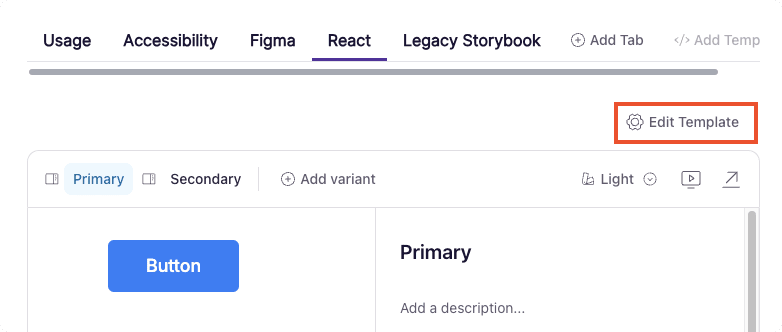
Step 1: Visit the pattern you want to adjust the asset sets for
Click the “Edit Template” button.
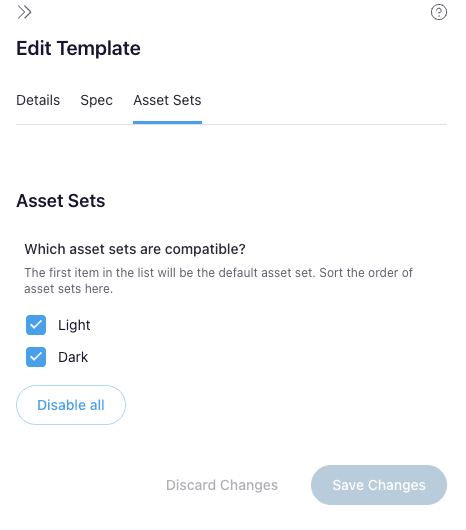
Step 2: From the expanded side panel we need to select the “Asset Sets” tab
We can now select the asset sets we want to available to use in the current pattern. Be sure to save your changes.
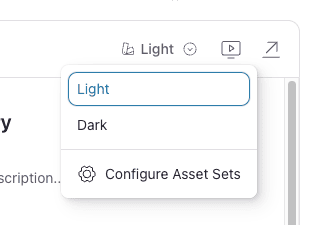
Step 3: You will now be able to toggle the available asset sets