

Workspace Doctor
Overview
The Workspace Doctor tool is your go-to feature for diagnosing and fixing issues with your site’s navigation. If you’ve ever noticed that pages seem to mysteriously disappear from your menu, the Doctor is here to help. This powerful tool acts like a content detective, helping you locate and manage orphaned pages—those that have lost their place in your navigation structure. Whether you need to reconnect these pages or remove them entirely, the Doctor tool makes it easy to maintain a well-organized and intuitive navigation system for your Knapsack workspace. It also lists nav items whose key doesn’t match the page or pattern they link to. Moves of those items don’t save until the key is fixed.
Accessing the Doctor Tool
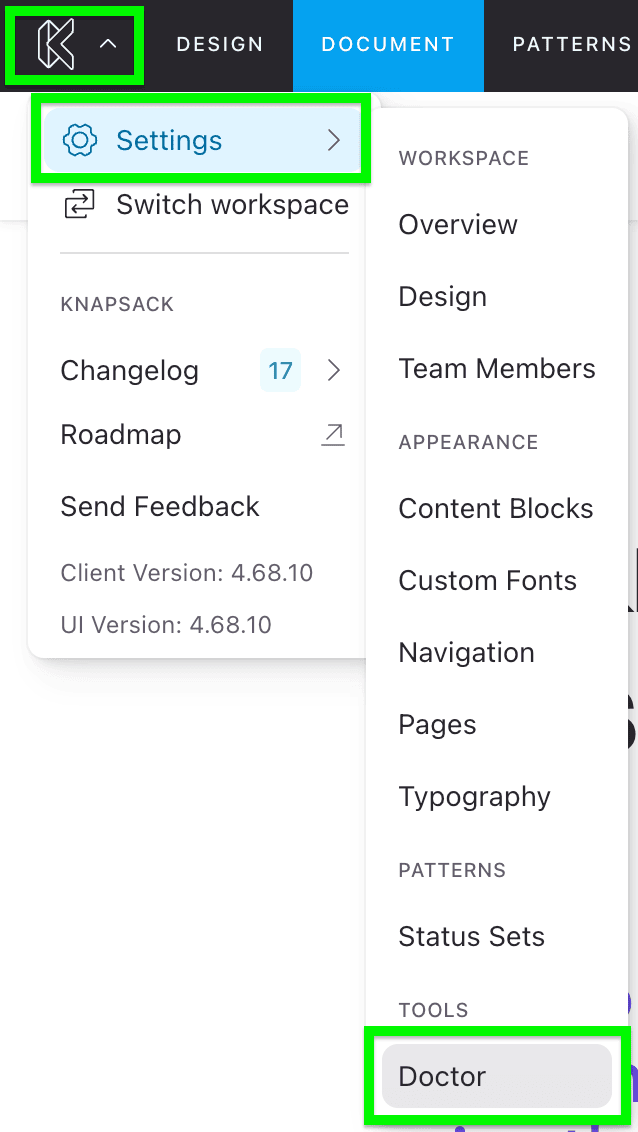
To access the Doctor tool, log in to Knapsack, navigate to the Settings menu in the top left corner under the Knapsack logo, and click on Doctor in the sidebar navigation. This tool can be found under the Tools section.
Identifying Orphaned Pages
When you open the Doctor tool interface, you’ll be presented with a list of Orphaned Nav Items—pages that currently have no parent navigation link. For each orphaned page, you’ll see important details such as the page title, its unique ID, and the type of content (typically “page”). This makes it easy to identify which pages need attention.
Managing Orphaned Pages
Reconnecting Orphaned Pages
To reconnect an orphaned page:
- Locate the orphaned page you want to reconnect from the list.
- Click on the ellipsis (…) under the “Actions” column on the right side of the page entry.
- Select the “Add to Menu” option from the dropdown menu.
- Choose the appropriate menu item from your site’s navigation tree to link your page back into the site’s structure.
- Save your changes to restore the page to your site’s navigation.
Deleting Unwanted Orphaned Pages
If an orphaned page is no longer needed:
- Click the ellipsis (…) under the “Actions” column next to the page you wish to delete.
- Select the “Delete” option from the dropdown menu.
- After deleting the page, a confirmation toast will appear in the top right corner.
Fixing Nav Item Keys
The Nav Item Keys section lists nav items in your knapsack.navs.yml file whose key doesn’t match the page or pattern they link to. For example, a nav item stored under the key k3j2h1 that links to /pattern/button should be stored under the key button. This can happen with nav data created by older versions of Knapsack or edited by hand.
If you move one of these items in the navigation, the move looks like it worked, but the item goes back to its old place when you reload the page. Moves of the item save again once its key is fixed.
The Doctor reads knapsack.navs.yml from your Knapsack server, so this section shows the file as deployed, not changes in a draft.

To fix a nav item key:
- Open
knapsack.navs.ymlin your design system repository. - Under
byId, find the nav item by the key shown in the Nav Item column. - Rename the key and the item’s
idto the value shown in the Fix in knapsack.navs.yml column. - In the
orderlist, replace the old key with the new one. If you skip this, the item moves below the other items at its level. - Replace the old key with the new one in the
parentIdof any nav items under it. - Commit the change and deploy your Knapsack server.
- Reload the Doctor page and confirm the item is no longer listed.
Best Practices
- Regularly check the Doctor tool to ensure your site’s navigation remains clean and well-organized.
- Before deleting a page, double-check that it is no longer needed or linked from other site content.
- Keep a record of changes made to your site’s navigation structure to track any potential disconnections and maintain a clear understanding of your content hierarchy.