
Name, Logo, and Favicon
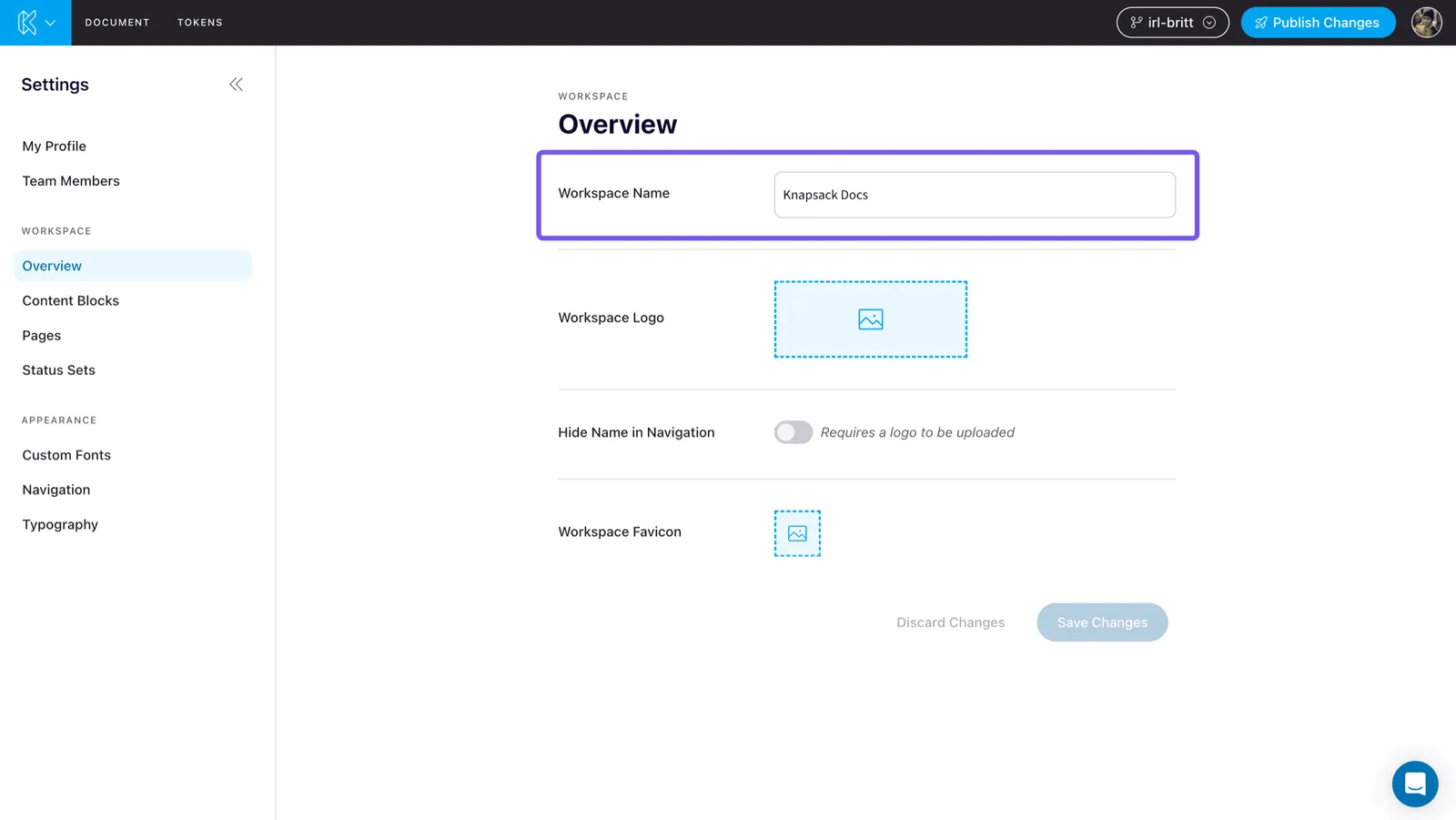
Workspace Name
The workspace name setting allows you to define the name of your workspace. This name will be displayed in various places within the workspace, such as the navigation bar.
To set the workspace name, follow these steps:
- Open the workspace settings menu by clicking on the Knapsack logo in the top left corner of the workspace.
- Select “Settings” from the dropdown menu.
- Under the workspace section, you will find the “Overview” section.
- Enter the desired name for your workspace in the provided input field.
- Click “Save” to apply the changes.
Workspace Logo
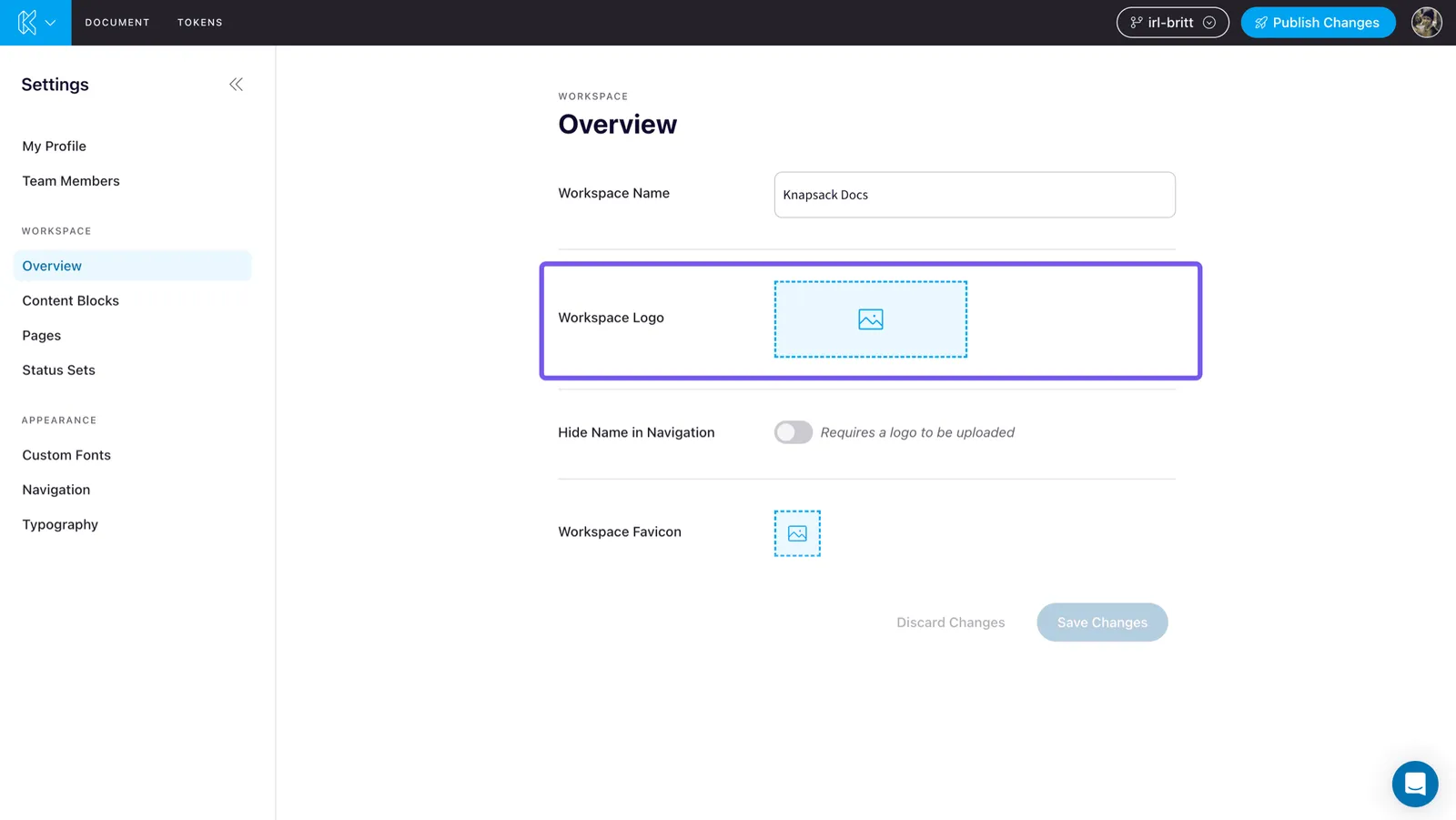
The workspace logo setting allows you to upload a custom logo for your workspace. This logo will be displayed in the navigation bar.
To set the workspace logo, follow these steps:
- Open the workspace settings menu by clicking on the Knapsack logo in the top left corner of the workspace.
- Select “Settings” from the dropdown menu.
- In the “Workspace” section, you will find the “Upload Logo” section.
- Click on the logo upload placeholder button to select an image file from your computer.
- Once you have selected the logo file, click “Save” to apply the changes. The logo will be displayed in the workspace.
Hide Name in Navigation
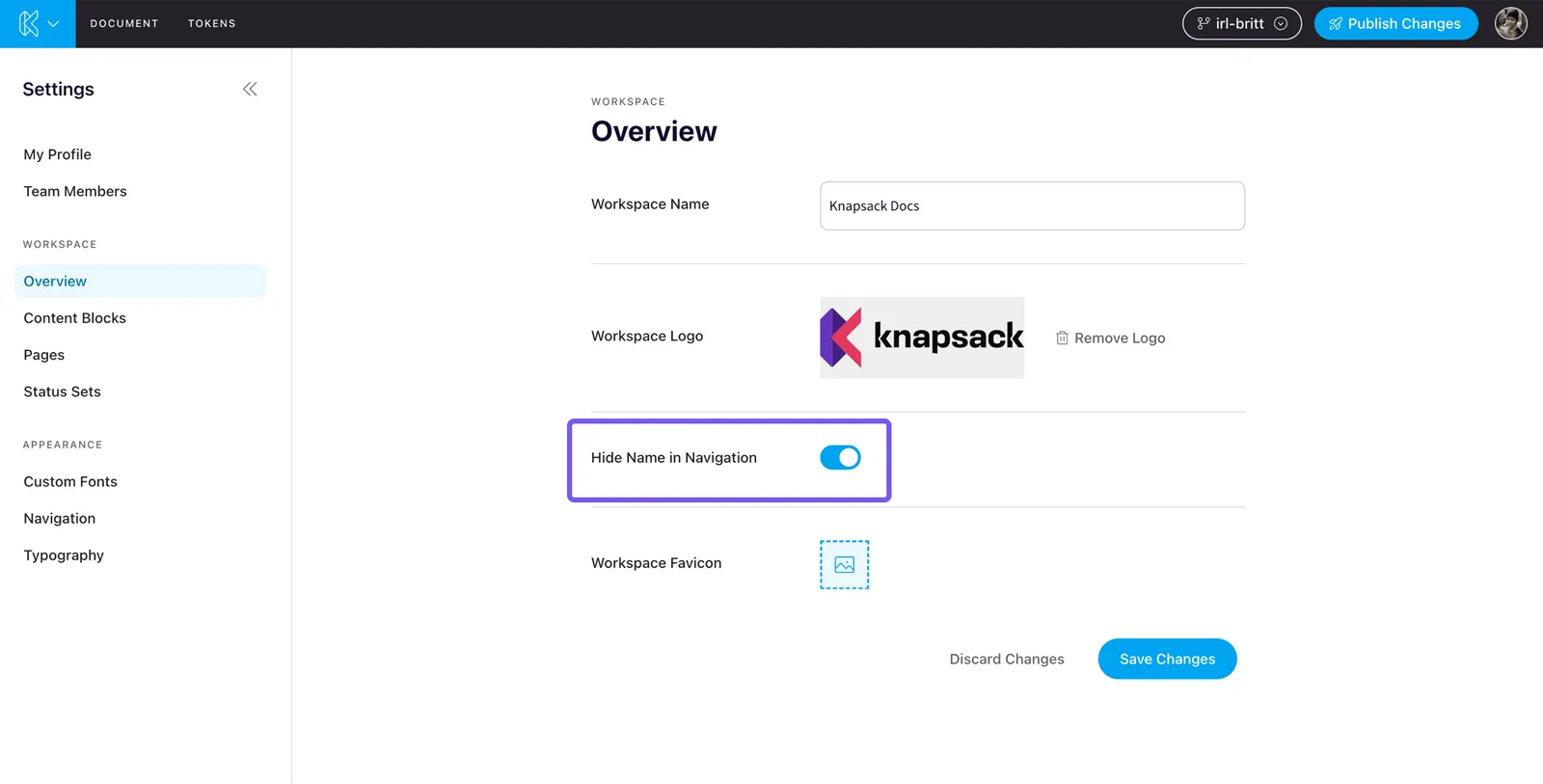
The hide name in navigation setting allows you to hide the workspace name from the navigation bar. This can be useful if you prefer a minimalistic look or if you have a custom logo that includes the workspace name. You must first upload your site logo before you have the ability to hide your site name from displaying in the workspace.
To hide the workspace name in the navigation bar, follow these steps:
- Open the workspace settings menu by clicking on the Knapsack logo in the top left corner of the workspace.
- Select “Settings” from the dropdown menu.
- In the “Workspace” section, locate the “Hide Name in Navigation” option.
- Toggle the switch to the “ON” position to hide the workspace name.
- Click “Save” to apply the changes. The workspace name will no longer be displayed in the navigation bar.
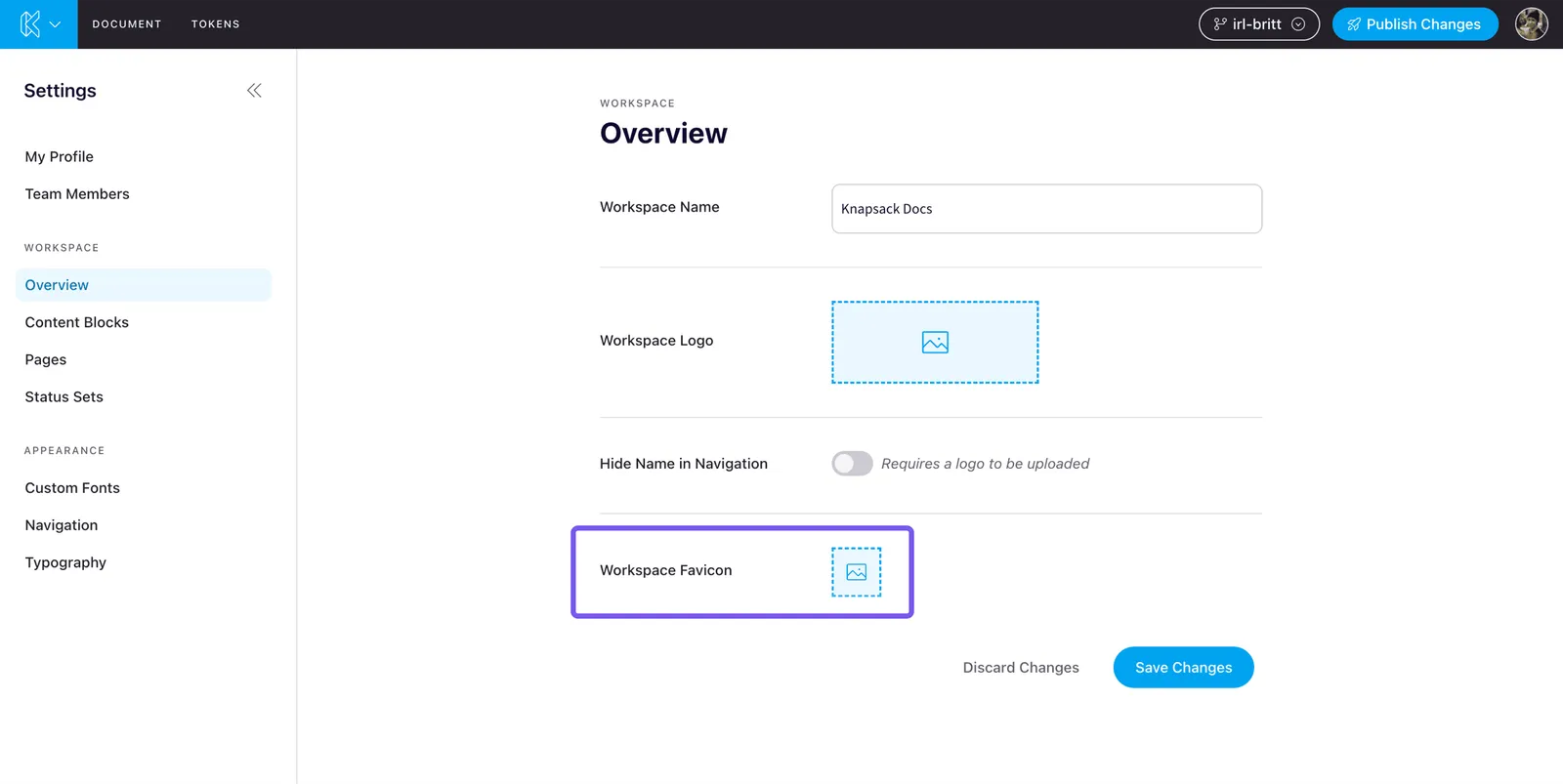
Workspace Favicon
You can also customize your workspace’s favicon, which is the small icon that appears in the browser tab. Here’s how to do it:
- Open the settings menu by clicking on the Knapsack logo.
- Select “Settings” from the dropdown menu.
- In the “Workspace” section, look for the “Upload Favicon” section.
- Click on the favicon upload placeholder button and choose an image file from your computer.
- Click “Save” to apply the changes. Your favicon will now be displayed in the browser tab.
Remember, the recommended size for the favicon image is 16x16 pixels.