

Variables
Only available on certain plans. Reach out to a Knapsack sales representative to enable this feature.
Getting Started
Head to the Design settings to toggle on Enable Variables. Once on, you’ll see some additional options you can chose to adjust:
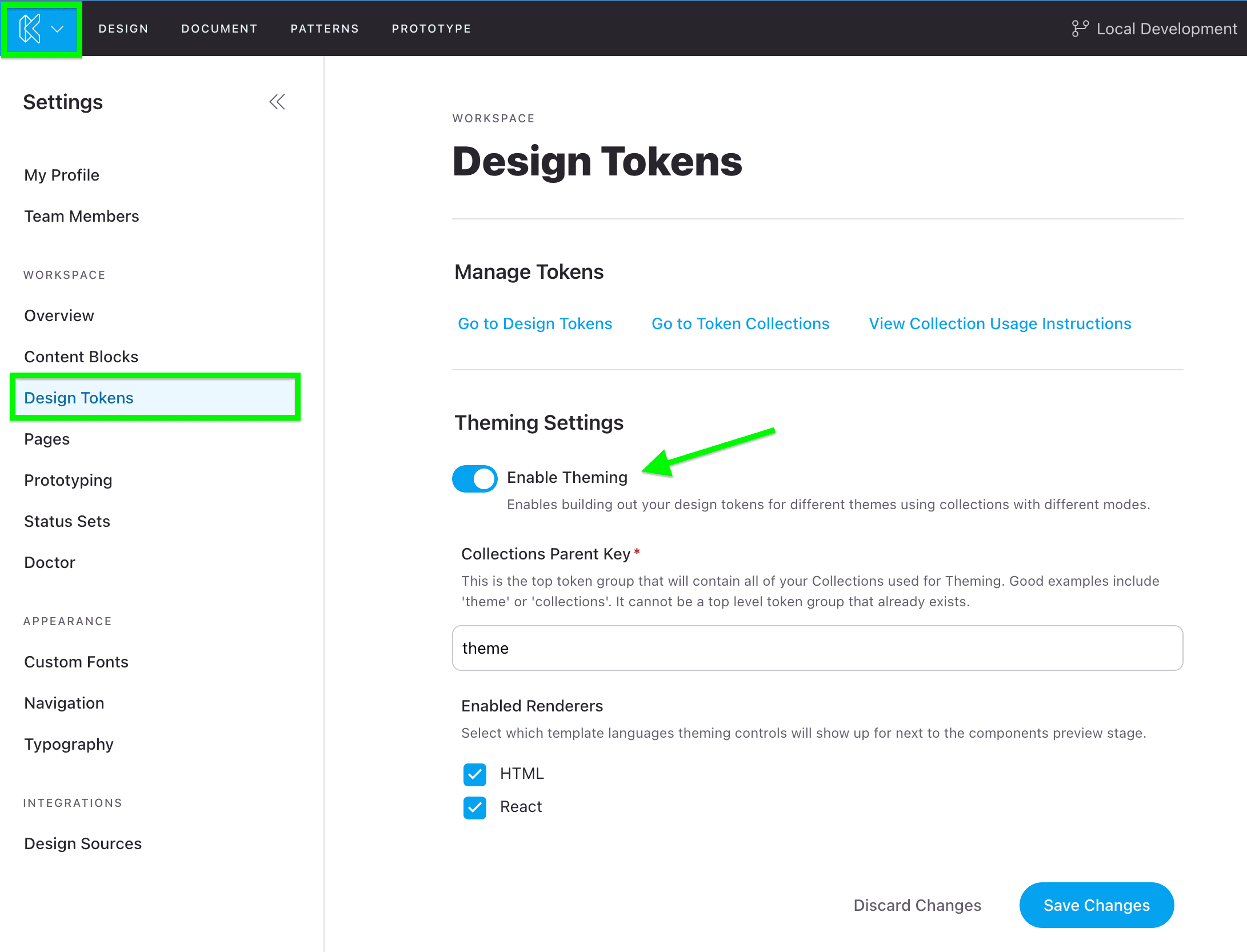
Collections Parent Key
This is the top level key that all variables will contain when they are distributed.
Example: collectionsParentKey.groupName.variableName
Enabled Renderers
By default Knapsack enables theming for all renderers within your workspace. You can choose to disable any that aren’t ready for theming. When a renderer is enabled, a Theme drop down will appear on the template stage allowing users to switch between the themes you create.
Collections and groups
Collections and groups are used to organize variables for easier parsing and more precise variable naming.
A collection is a set of variables and modes. Use collections to organize related variables together. For example, use one collection for spacing values, and another collection for theme colors.
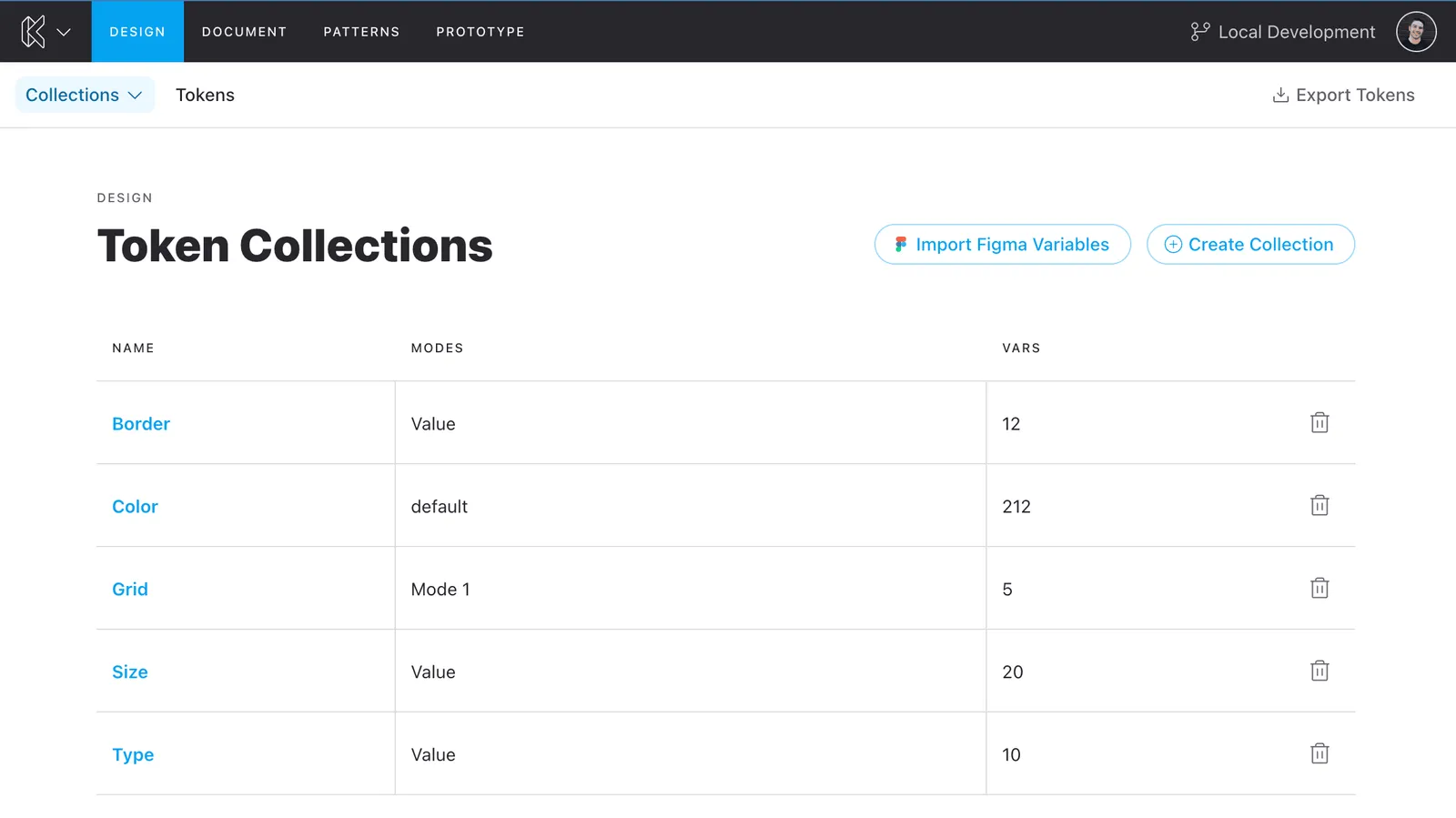
Use groups within a collection to further organize your variables. For example, use one group for text colors, and another for fill colors.
Variables
Variables are a set of tokens that change their value based on different modes, such as light and dark.
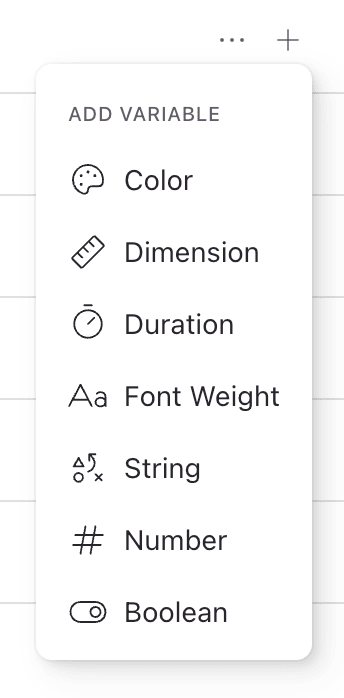
Supported variable types
- Color
- Dimension
- Duration
- Font Weight
- String
- Number
- Boolean
Variable modes
Modes are where token values are defined. Modes allow creating complex sets of tokens that can handle many situations such as basic light and dark modes, or support for multiple brands. For example, you might have a text color variable that has a black value in light mode, and a white value in dark mode.
Adding new modes
By default a collection starts with a single variable mode. You can add additional modes, by clicking the ‘Add Mode’ button in the top right of the collection view.

Managing existing modes
Renaming modes
Simply update the name of the mode inline. If the mode is already in use in your system, you’ll need to update any existing data attributes associated to that mode name.
Reorder modes
Use the mode actions menu to move a mode left or right to make finding them easier. The first variable mode will always be treated as the default value for the variable.
Delete existing modes
Use the mode actions menu to delete a mode. This will remove all related variable values and cannot be undone.