
Creating Demos
Overview
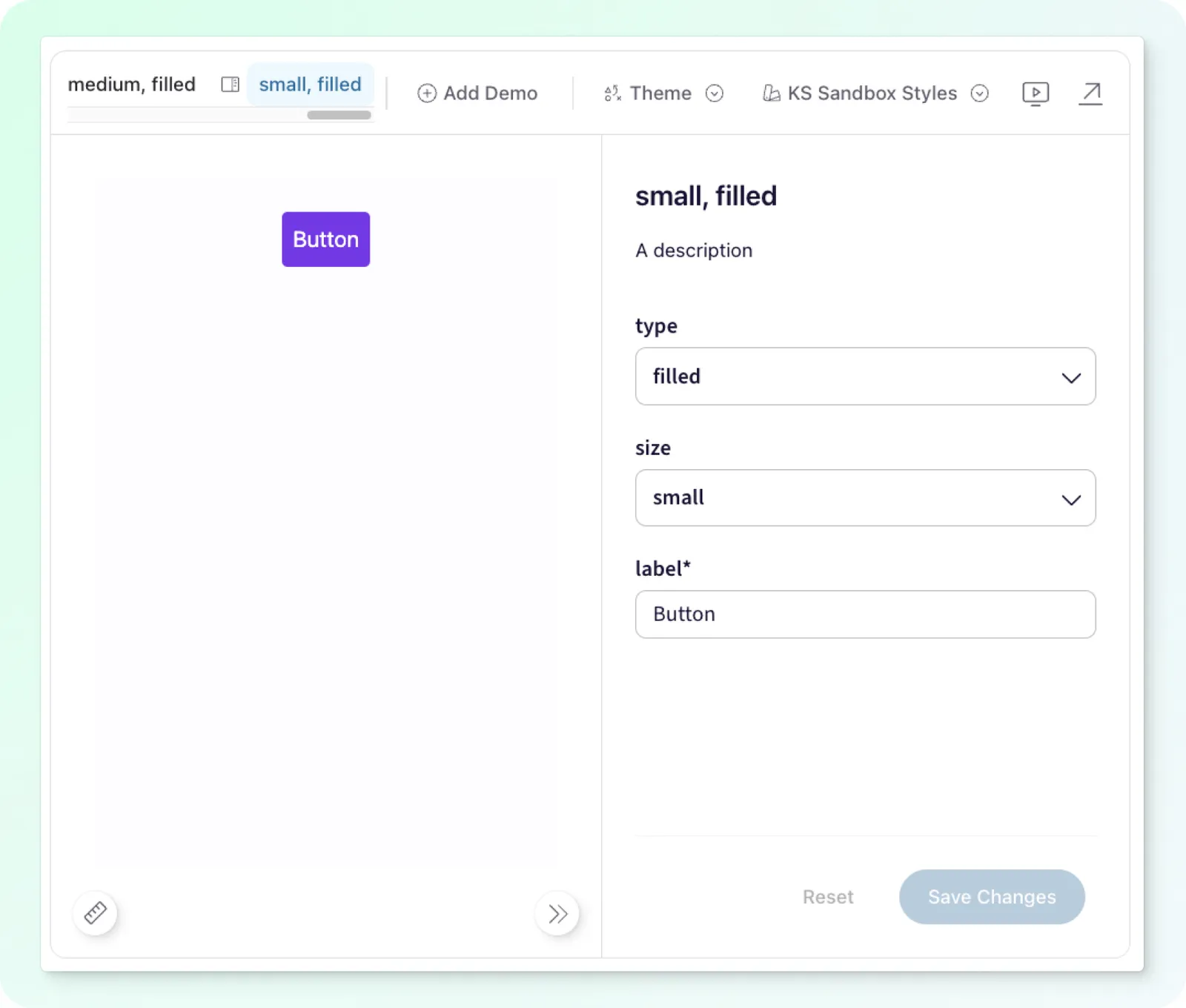
This page provides an in-depth guide to creating and managing demos for your components. It covers various demo types, including Variant Demos and Custom Demos, and explains how to utilize slots and sub-components within your demos.
Additionally, it explores how to integrate Figma to display component variants directly within your Knapsack workspace, enabling a seamless connection between design and code.
Types of Demos
After you’ve added a component template you can create two kinds of demos:
Variant Demo
Variant Demos allow you to change the content within a form and save it, showcasing different variations of a component. For example, you can demonstrate a “Primary” button and a “Secondary” button as separate demos. It’s perfect for scenarios where you need to demonstrate specific variations of your component.
Custom Demo
Custom Demos enable you to render a fully custom-coded template. This type of demo often uses your original component but allows you to wrap it with different content or logic. It’s perfect for scenarios where you need to demonstrate unique configurations or advanced uses of your component.
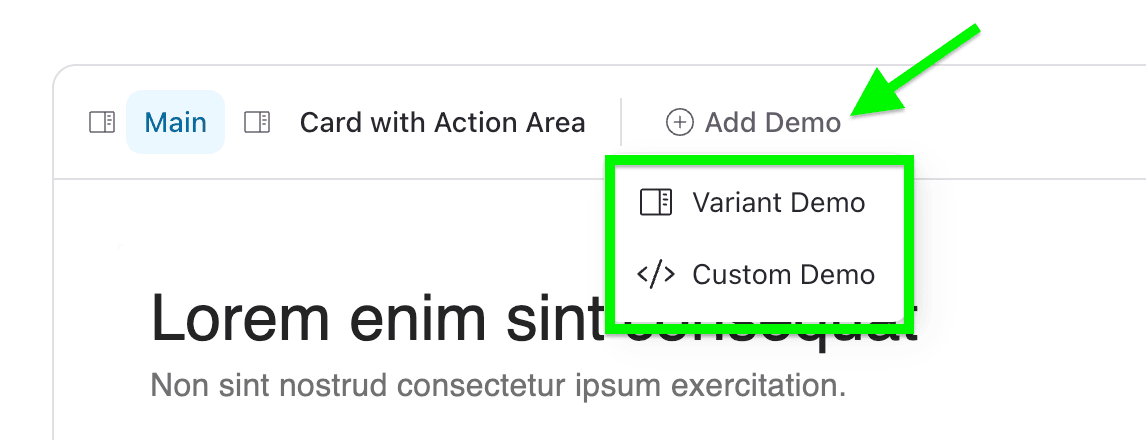
Creating a New Variant Demo
- At the top of the Pattern Stage, click the “Add Demo” button.
- Next, click “Variant Demo”
- Give the new variant a name and populate the desired prop configuration.
- Click the blue “Save Changes” button 🎉
Creating a New Custom Demo
- At the top of the Pattern Stage, click the “Add Demo” button.
- Next, click “Custom Demo”.
- Give the new custom demo a title, optional description, template path and named export.
- Click the blue “Save” button 🎉
Demos from Figma
Hovering over the Figma variant, there is a ‘Create Code Demo’ button that creates a variant demo for the selected renderers.
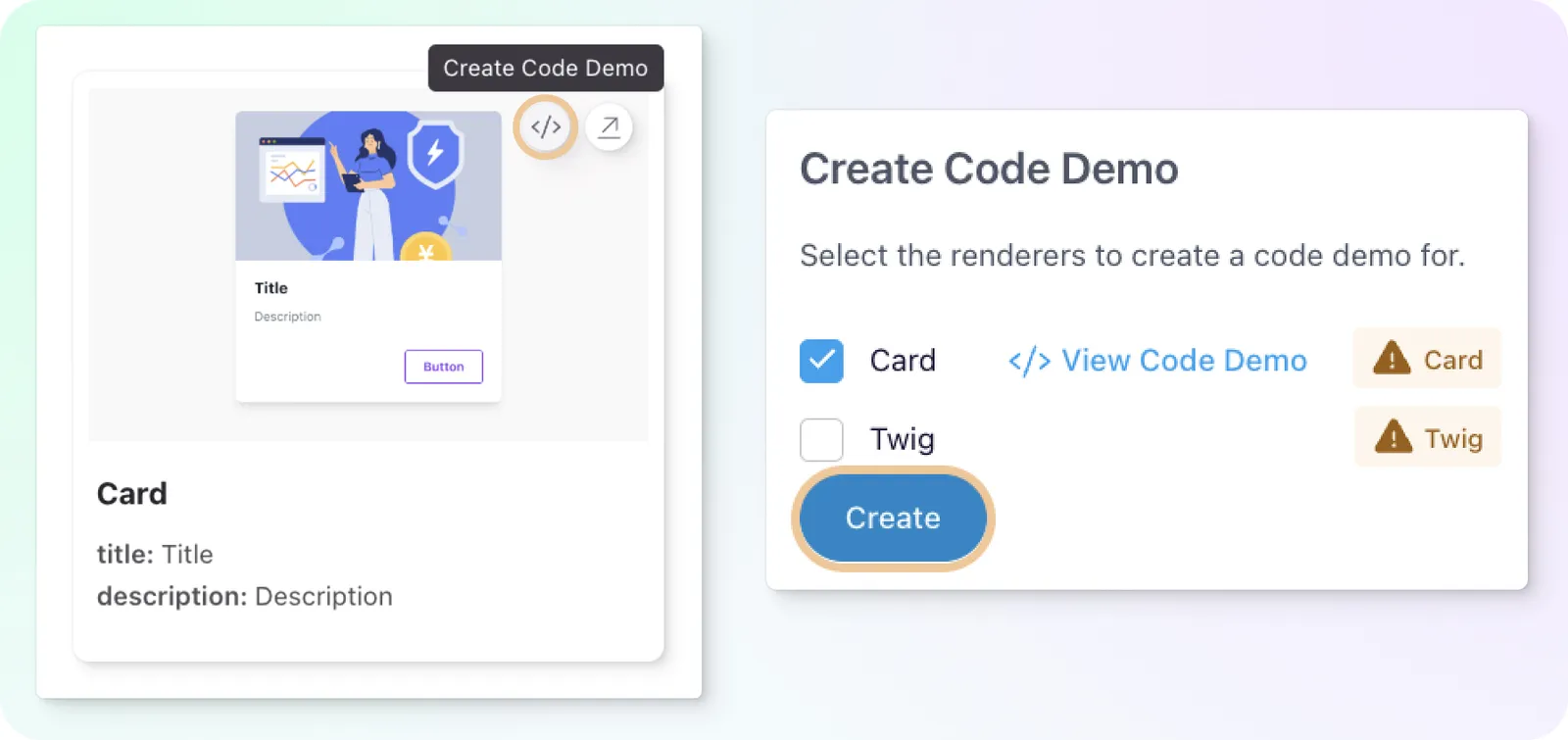
From a renderer tab we can create variant demos by selecting the ‘Import from Figma’ option in the ‘Add Demo’ menu. This option will only be available if a design source tab exists for the desired pattern.
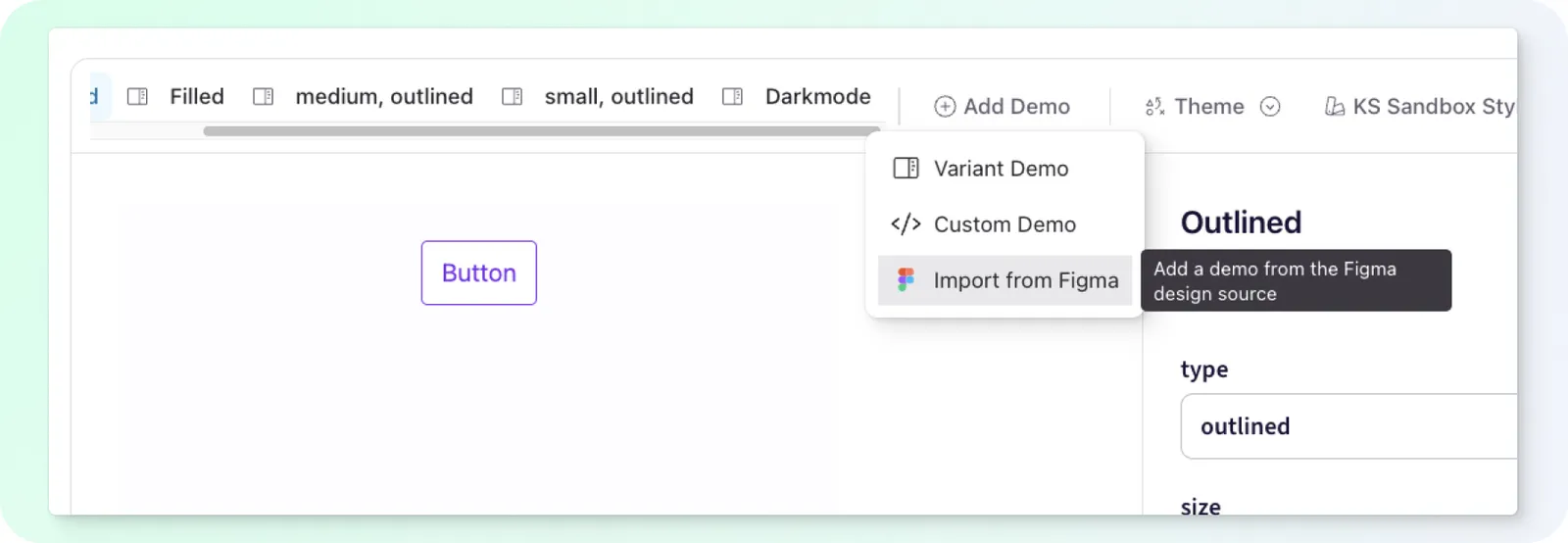
Select the variants you want to create demos for and save.
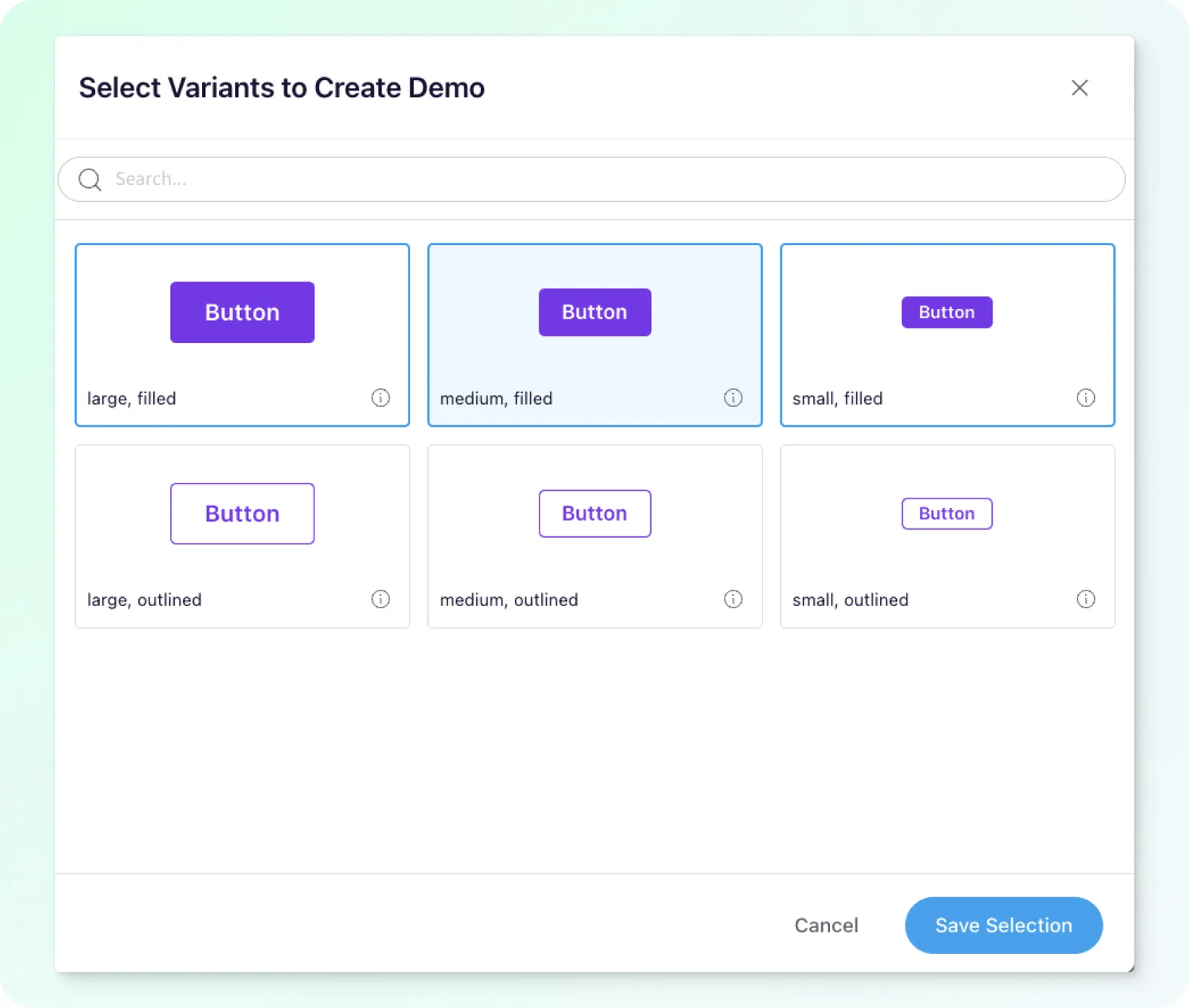
Once the patterns are created we can navigate to the code demo and edit if needed.