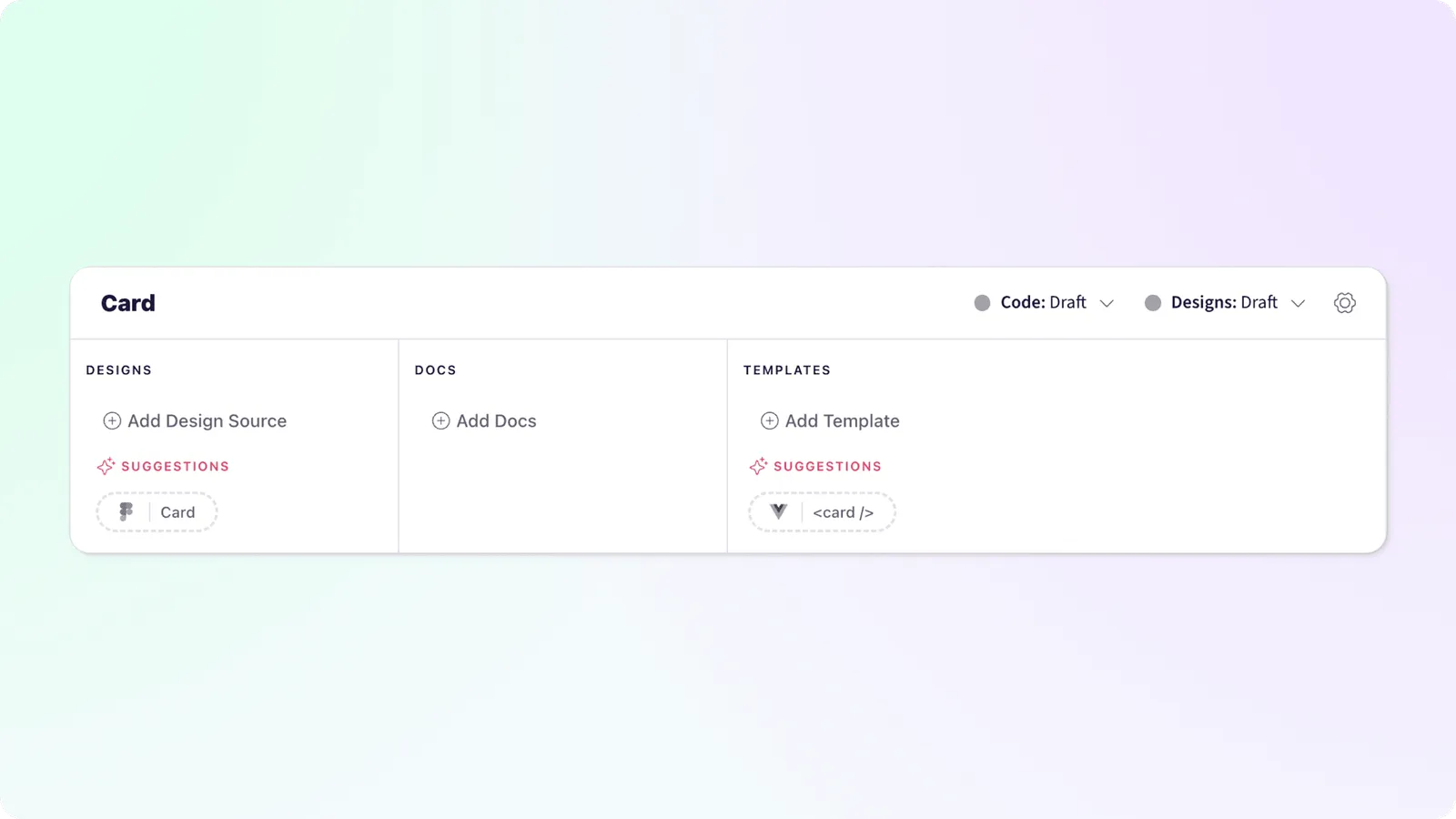

Patterns
By creating pattern-specific pages, you can centralize and document your design system components, making it easier to maintain consistency and share them with your team.
Adding a new Pattern
Creating a new pattern in your Knapsack workspace is straightforward. This section walks you through the simple steps required to add a new pattern:
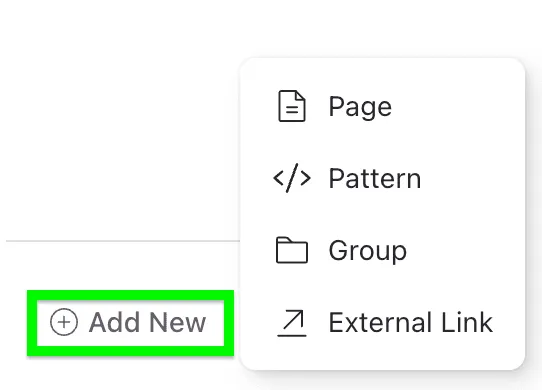
- Navigate to the primary or a secondary navigation menu.
- Click on the “Add New” button and choose “Pattern”.
- Enter the title for your new pattern and configure any initial settings.
- Click “Add Pattern” to add the new page to your documentation.
Connecting Code Sources
Connect to New Pattern
Navigate to the Patterns section through the main app bar and click the New Pattern button in the top right to open the Add New Pattern modal.
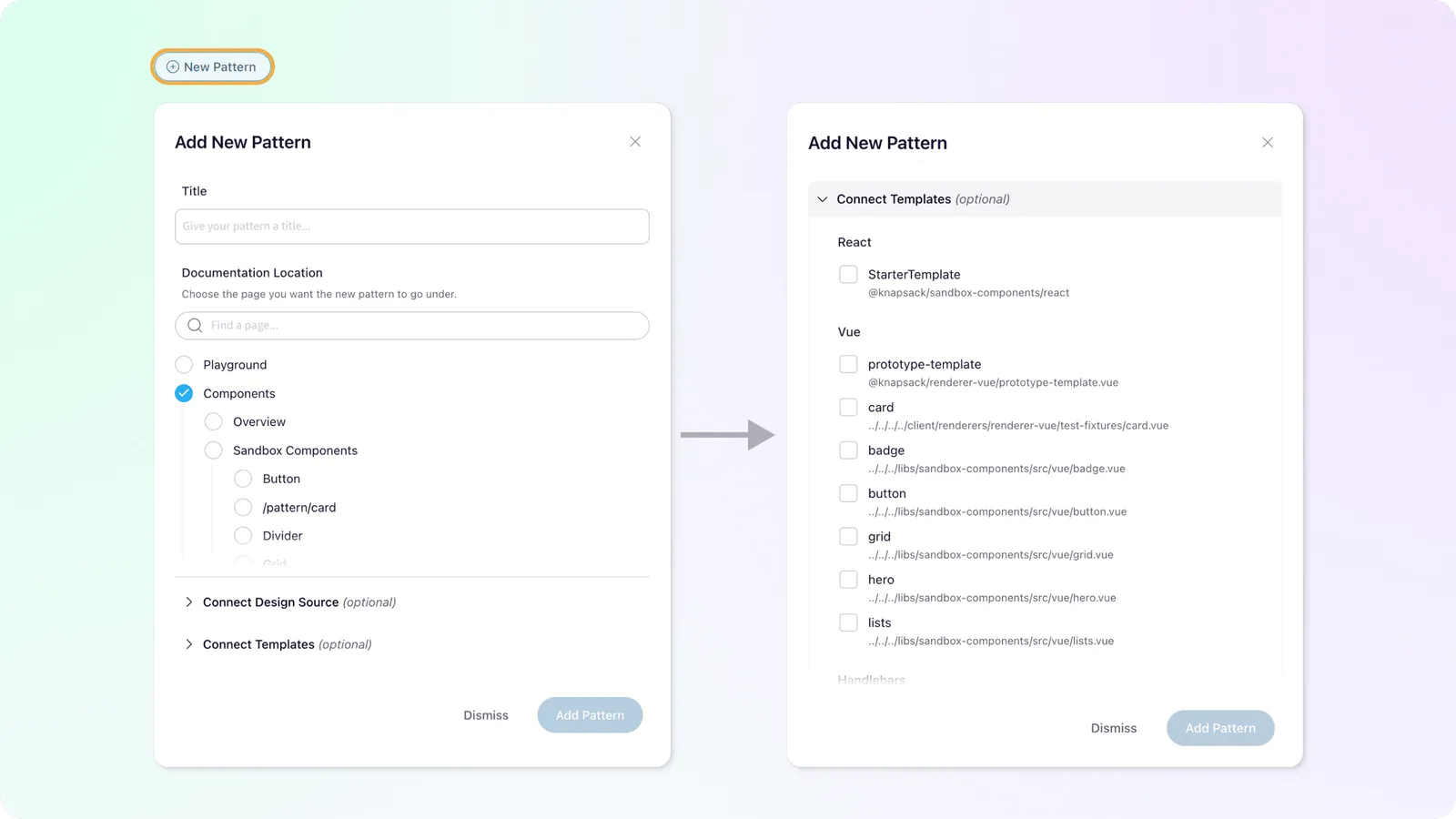
- Give your pattern a title (must be unique)
- Choose the documentation location. By default, we’ll attempt to put the documentation under an existing group/page titled Components or Patterns.
- Expand the Connect Template section to choose a template from packages you’ve already connected. If the template you want to connect is not available, you can add it later through the Template Panel.
- Click Add Pattern
Connect to Existing Pattern
Navigate to the Patterns section through the main app bar and find the pattern you want to add a template to.