

Status Sets Settings
Overview
Status Sets allow you to create and manage customizable statuses that can be applied to patterns in your design system, providing a clear and organized way to track the progress of different aspects of your project.
For example, your organization might want to monitor the design status, React component status, web component status, and more. Each Status Set can be tailored to fit your workflow. For instance, a design status set could include stages like “Backlog,” “In Progress,” “In Review,” and “Ready.” Similarly, you can create and customize status sets for other areas of your design system to suit your team’s needs.
By effectively using Status Sets, you can ensure that everyone on your team is aligned and aware of the current stage of each component within the system.
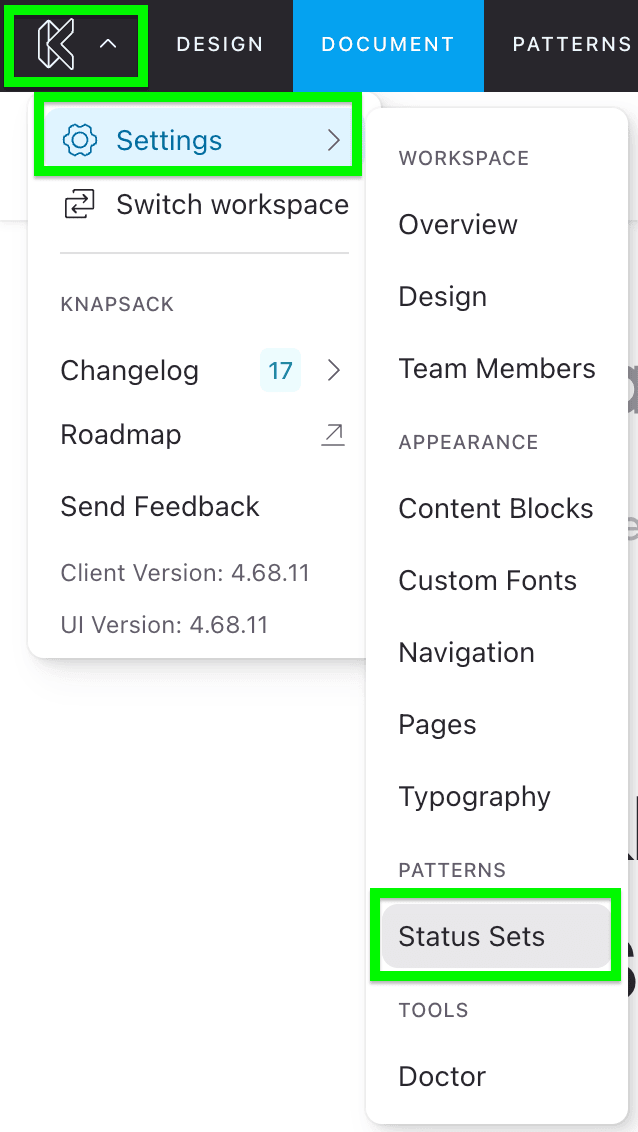
Accessing Status Sets Settings
To access Status Sets settings, go to the app menu in the top left of the screen, select Settings, and navigate to Status Sets.
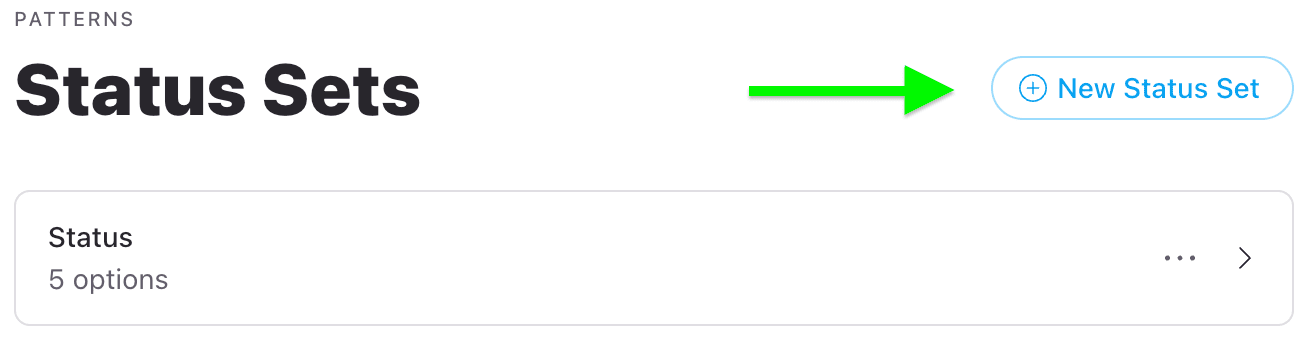
Adding a New Status Set
To add a new Status Set:
- First click the blue outlined “New Status Set” button.
- Provide a title for the set and add the statuses that best represent the stages of your workflow.
- Once you’ve defined the statuses, click the blue “Create Set” button.
- You can then navigate back to your patterns and apply the newly created statuses.
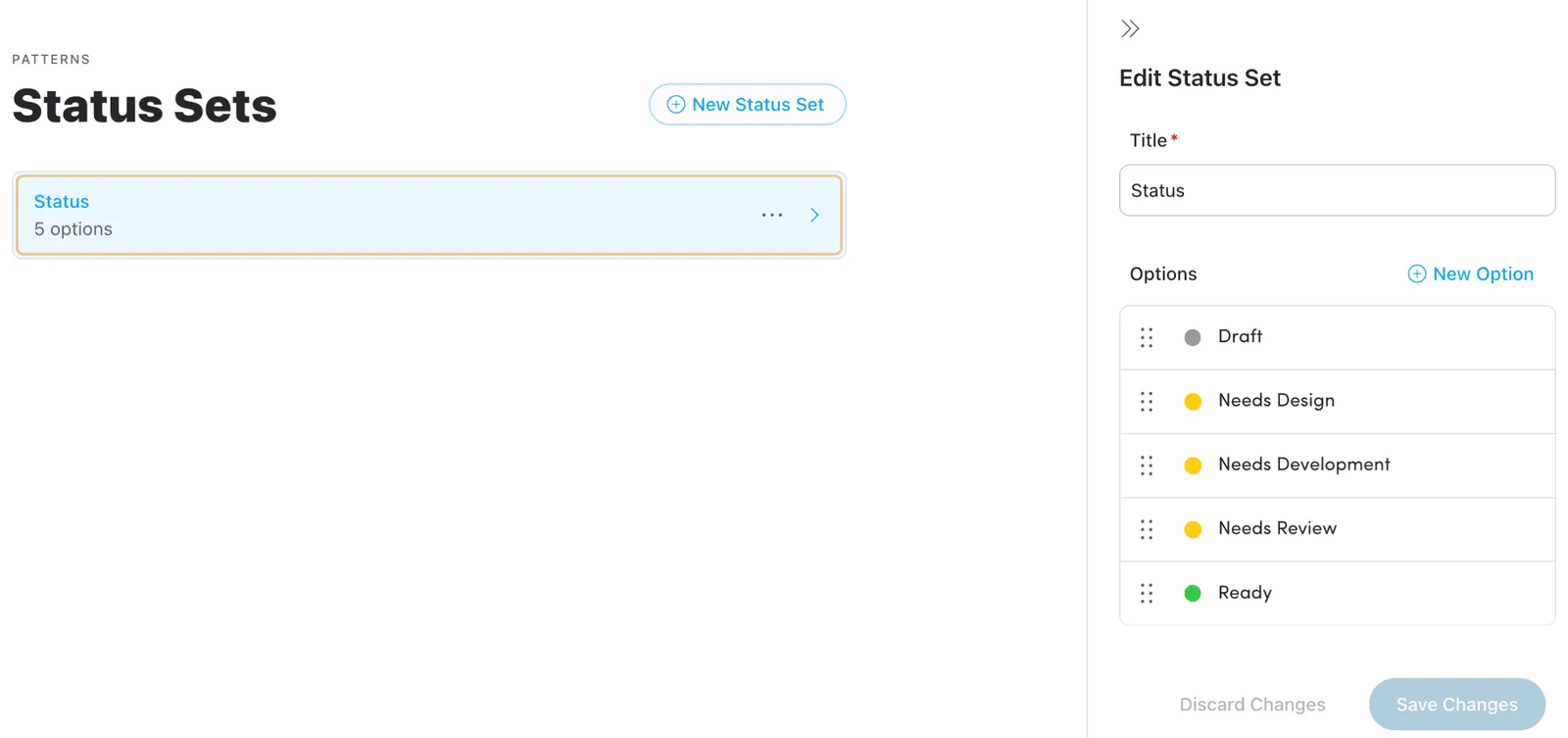
Managing Status Sets
To manage existing Status Sets, simply click on the set you’d like to manage. This will open the right fly-out menu, where you can add, edit, or remove individual statuses, ensuring that your Status Sets remain accurate and reflective of your current processes.
By using Status Sets effectively, you can maintain a clear overview of your project’s progress, streamline communication within your team, and ensure that every component in your design system is tracked through its lifecycle.