

Embed Blocks
Getting Started
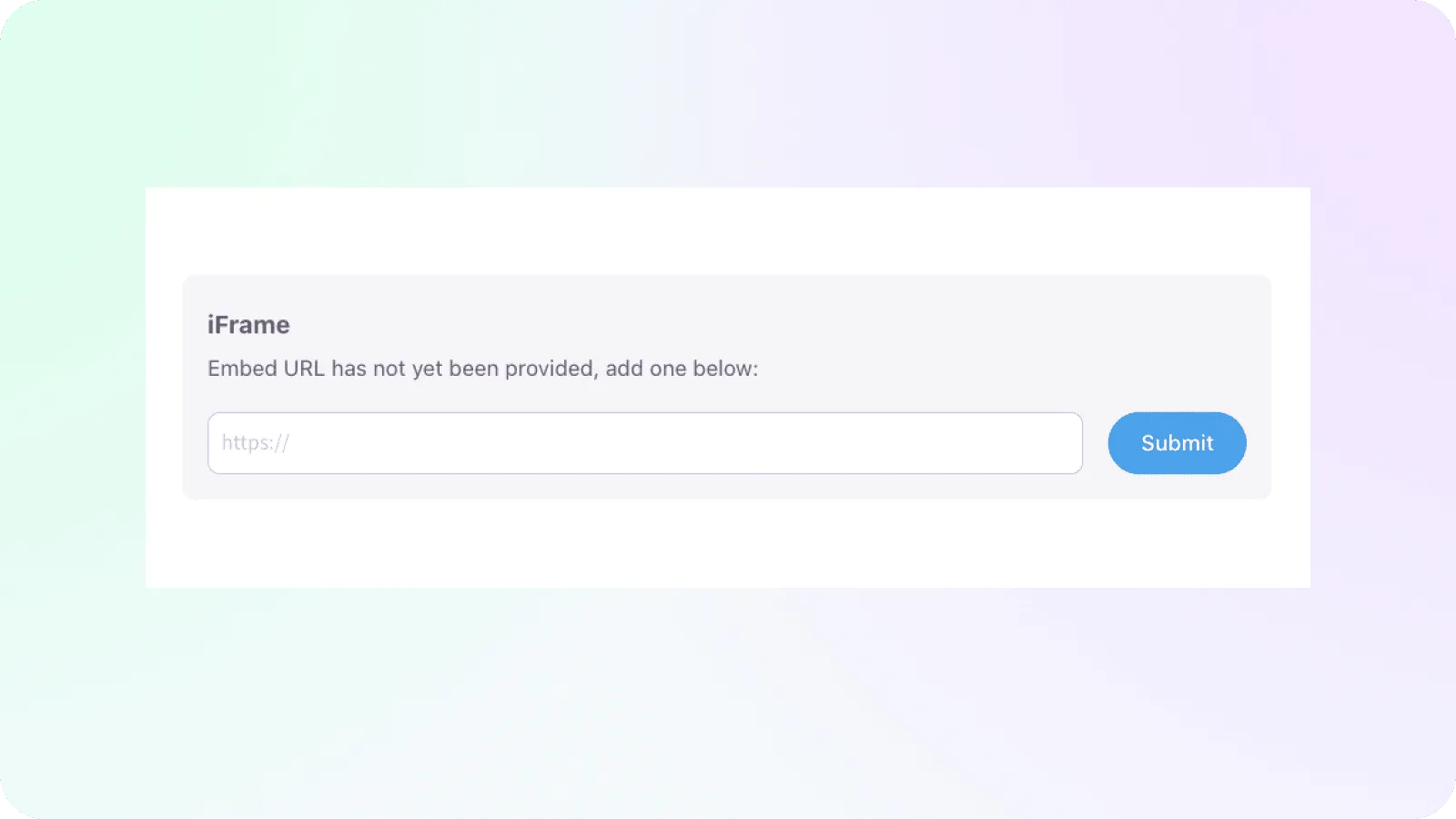
Embed blocks provide a platform for incorporating third-party content into your documentation. They support a variety of formats, ranging from standard iFrames to embedded designs and code. Our embed blocks serve as a versatile tool for efficiently organizing your third party design system artifacts within Knapsack.
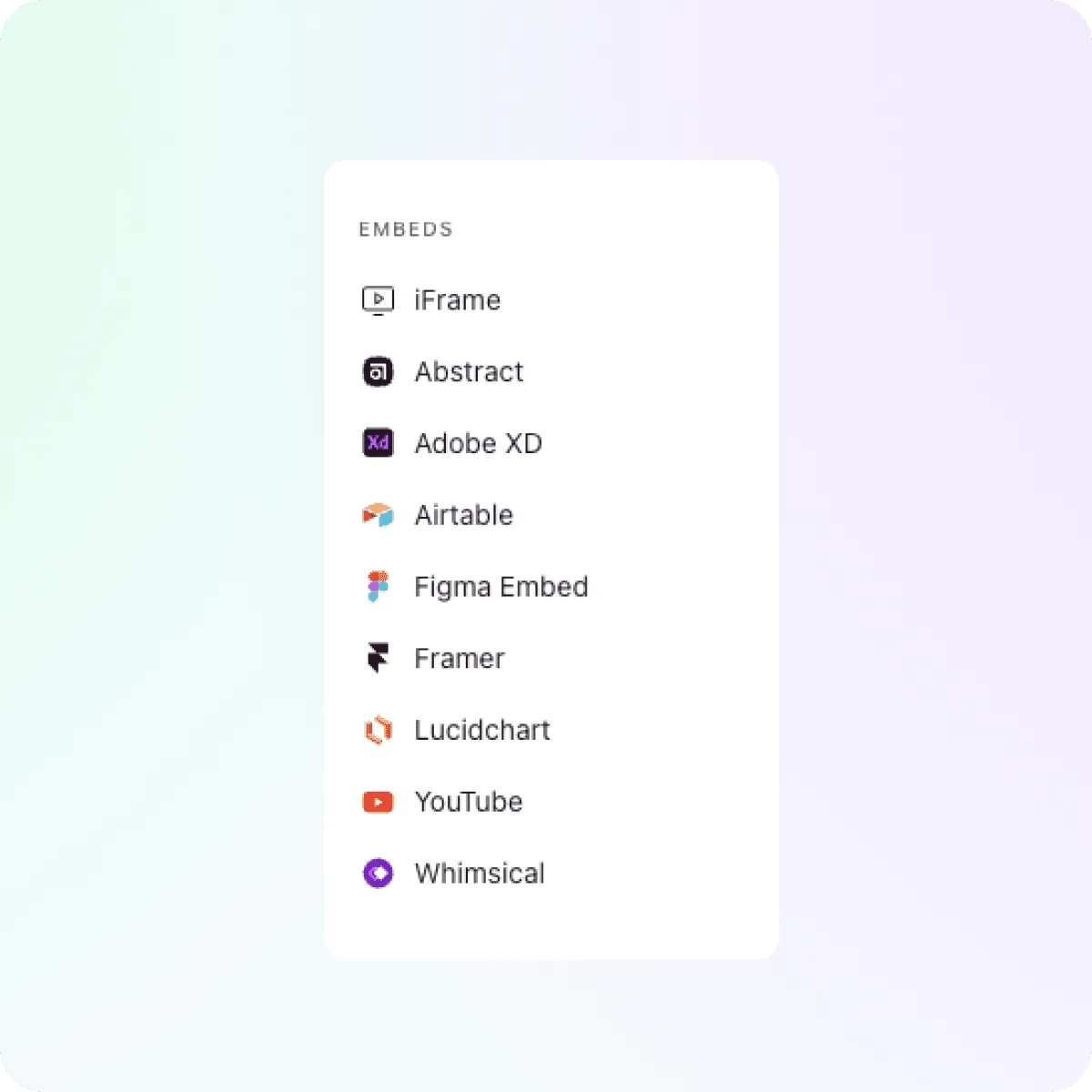
To get started, add a new block to your page and navigate to the “Embeds” section in the popover menu.
Select the desired embed type from the list.
Embed Block Options
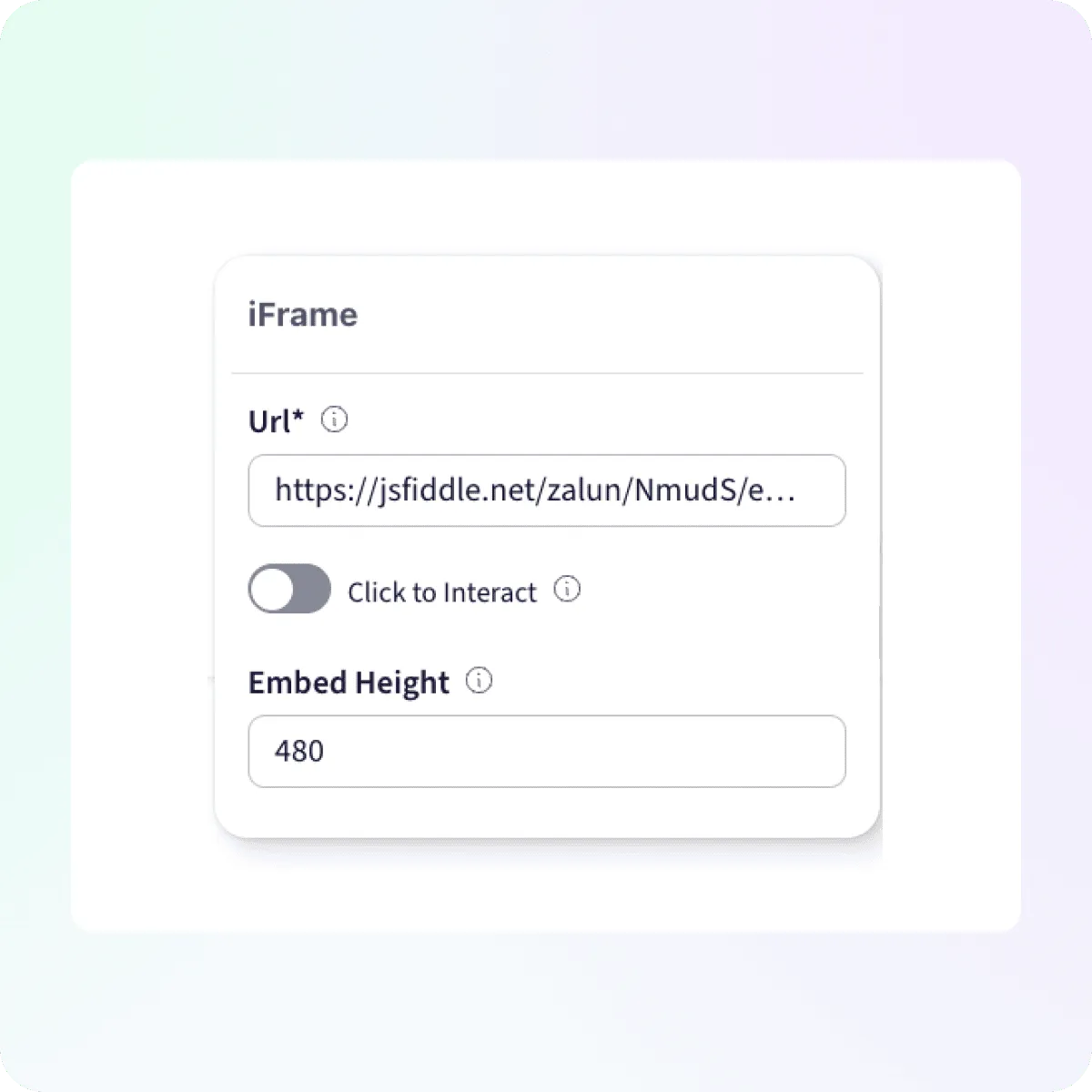
With our embed now rendering, we can use the block settings to update the embed.
Url - Edit the current URL of the embed.
Click to Interact - This will require a user to click on the iFrame before it is interactive. This is helpful for preventing scrolling or hover effects, etc, from occurring in the embedded content until a click event is received.
Embed Height - Set a height using px, em, vh units, etc. Defaults to px.
Using Specific Embed Types
Below you can more information for each of these embed block types
iFrame Block
The iFrame block allows you to embed anything that has permission to be rendered in an iFrame. This gives you the flexibility to add a wide range of resources from your third party providers.
Setup: Use a URL for any domains that are embeddable within an iframe.
Abstract Block
The Abstract Block enables you to embed designs and assets from Abstract. This block is perfect for showcasing design files and collaborative workspaces directly within your documentation.
Setup: Create a share link in Abstract and enter the URL in the prompt.
Adobe XD Block
The Adobe XD Block lets you embed Adobe XD designs and prototypes. This block is ideal for showcasing interactive design work and prototypes created in Adobe XD, allowing for seamless collaboration and presentation within your documentation.
Setup: Create a share link and enter the URL into the prompt
Airtable Block
The Airtable Block allows you to embed Airtable bases and views. This block is useful for integrating and displaying structured data and project management tools from Airtable.
Setup: Create a share link and enter URL in the prompt
Figma Block
The Figma Block lets you embed Figma files, prototypes, and components. This block is ideal for displaying design work and interactive prototypes, making it easy to collaborate on design projects.
Setup: Use the URL for the Figma file or prototype you want to embed
Framer Block
The Framer Block enables you to embed Framer content, providing a way to showcase interactive prototypes and design assets.
Note: Use the share URL for the Framer content you want to embed and enter into the prompt
Lucidchart Block
The Lucidchart Block allows you to embed Lucidchart diagrams and flowcharts. This block is useful for displaying visual representations of processes, workflows, and organizational structures.
Note: Create a share link and enter the URL into the prompt
Vimeo Block
The Vimeo Block lets you embed Vimeo videos. This block is perfect for adding visual and multimedia content to your documentation, enhancing engagement and information delivery.
Setup: Create a share link from the video to embed and enter the URL into the prompt
Youtube Block
The YouTube Block enables you to embed YouTube videos. This block allows you to incorporate instructional videos, presentations, and other visual content from YouTube.
Setup: Create a share link from the video to embed and enter the URL into the prompt
Whimsical Block
The Whimsical Block allows you to embed Whimsical wireframes, mind maps, and diagrams. This block is useful for displaying visual planning and brainstorming tools directly within your documentation.
Setup: Create a share link and enter the URL into the prompt